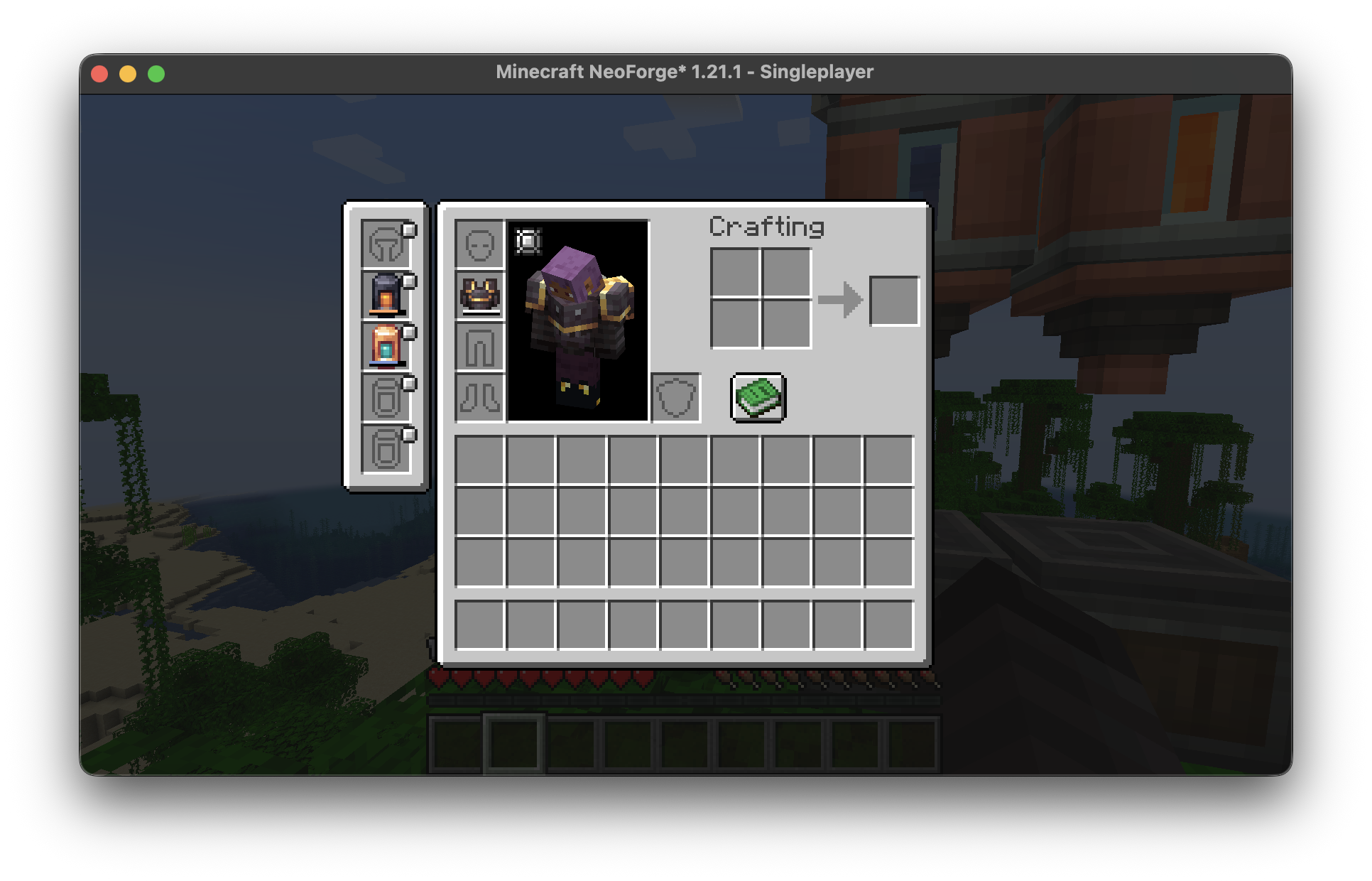
Curios Mod Forge Setup Guide
Curios mod Forge setup is mostly a dependency-matching task. The safest path is to verify Minecraft, loader and dependent-mod requirements before copying a JAR into the mods folder.
1. Confirm the Minecraft version
Open the profile or launcher instance and record the exact Minecraft version. A 1.20.1 mod file is not interchangeable with 1.21.x or newer releases.
Related: Browse all Curios mod guides or check the homepage compatibility overview.
2. Confirm Forge or NeoForge
Modern Curios releases can target Forge or NeoForge depending on the Minecraft generation. Use the loader family required by the rest of the pack. Never assume a filename for one loader will run on another.
3. Match the dependency range
If another mod requires Curios, its loader message or project requirements may specify a minimum or exact API range. Follow that requirement instead of choosing a version only because it looks newer.
4. Back up and test
Back up worlds and configs, remove obsolete duplicates, place the matching file in the mods folder, and launch once. If the loader stops, read the dependency text before making another change.
Quick checklist
- Write down the exact Minecraft version.
- Confirm the loader family before choosing a file.
- Check which installed mod requires Curios.
- Back up worlds and configs before dependency changes.
- Read loader errors before trying another version.